Connect your Instagram account
SocialHalo reads your Instagram analytics through the Facebook Page your Instagram account is linked to, and only for a professional account. That is how this connection works today, and it is why there is setup to do on Meta's side before the button does anything.
This guide covers every state your account might be in. Most people need the first section and nothing else.
SocialHalo only reads.
We pull your posts, your metrics and your comments. We cannot post, reply, delete, edit your profile or spend money on ads. Instagram publishing is not a feature we have.
Check this first
Answer these six. If all six are yes, skip to Connecting.
A business portfolio is Meta's container for Pages, Instagram accounts and ad accounts. This one catches people out, because Instagram creates a portfolio of its own the moment you switch to a professional account, so your Instagram account and your Page can end up in two different containers without you doing anything.
Meta's own screens label this either "full control" or "full access" depending on where you are looking. It is the level that lets you manage Page settings and grant other people access.
Members and viewers cannot connect accounts.
0 of 6 confirmed.
If any answer is no, find it in the list below and fix that one thing.
A professional Instagram account
Device: Phone or computer
A Facebook Page
Device: Phone or computer
The link between them
Device: Phone or computer
They are in different portfolios
The Instagram account is in the wrong business portfolio
Device: Computer only
Full control of the Page
Device: Computer only
Admin rights in SocialHalo
Ask your workspace owner
Device: Any
Not sure about check 4? Sign in at business.facebook.com and look at whether your Page and your Instagram account appear under the same portfolio. If you have never touched Meta Business Suite and you only ever ran one Page, they are probably already together.
Before you touch anything
Two changes on Meta's side are not quietly reversible. Read these before you start.
Switching a private Instagram account to professional makes it public. Every pending follow request is accepted automatically at the moment you switch. If you have follow requests you were deliberately leaving unanswered, deal with them first.
Once your Instagram account is linked to a Facebook Page, that is the only Page you can share Instagram posts to. You cannot share to a second Page or to a personal Facebook profile while the link exists.
One more thing worth knowing before you invite anyone else into this: after Instagram and a Page are connected, anyone with access to either one can manage both.
Connecting
You have everything on the checklist. The whole thing happens in one sitting.
Open Settings in SocialHalo
Go to Settings, find Connected accounts, and select Connect Instagram.
Sign in to Facebook
Facebook takes over the screen. Sign in with the Facebook profile that has full control of the Page.
If you use two-factor authentication, Facebook may not ask for a code. It can instead show Check your notifications on another device and wait for you to approve the login on your phone. Approve it there and the browser carries on by itself.
If Facebook shows Switching accounts and says you need to switch to another name to continue, the browser is signed in as a different Facebook identity than the one you want. Follow the prompt to switch, or sign out of Facebook in that browser and start again.
Choose what to share, across three screens
If you have connected Instagram to SocialHalo before, Facebook may open on Continue as followed by your name, saying you previously linked SocialHalo to Facebook and asking whether you want to continue with your previous settings. Select Edit settings, not Continue.
Continue skips the next three screens entirely and reuses whatever you granted last time. If last time is the reason you are here, that puts you straight back where you started.
This is the step that goes wrong. Slow down here.
Facebook asks you three separate questions on three separate screens, each with its own Back and Continue. The first two look almost identical. Read the heading at the top before you answer either one.
Screen 1: Choose the Pages you want SocialHalo to access
Facebook offers two options here and selects the wider one for you before you arrive.
- Opt in to all current and future Pages is the one already selected. Leave it selected and you share every Page on your Facebook profile, plus every Page you create from now on. No list appears at all, so you never see what you handed over.
- Opt in to current Pages only is the one you want. Select it and the list of your Pages appears underneath.
Tick the Page your Instagram account is linked to. Read the names properly if you run several that are similar, and tick another one only if you genuinely want it in SocialHalo too. A counter at the bottom keeps score in Meta's own vocabulary rather than the plain words in the heading: 2 Assets Selected means two boxes are ticked. There is a Select all control beside the list. Leave it alone unless you really do want every Page.
Then select Continue.
Screen 2: Choose the Instagram accounts you want SocialHalo to access
Same shape, same pre-selection. Opt in to all current and future Instagram accounts is selected for you; choose Opt in to current Instagram accounts only and tick the account you want.
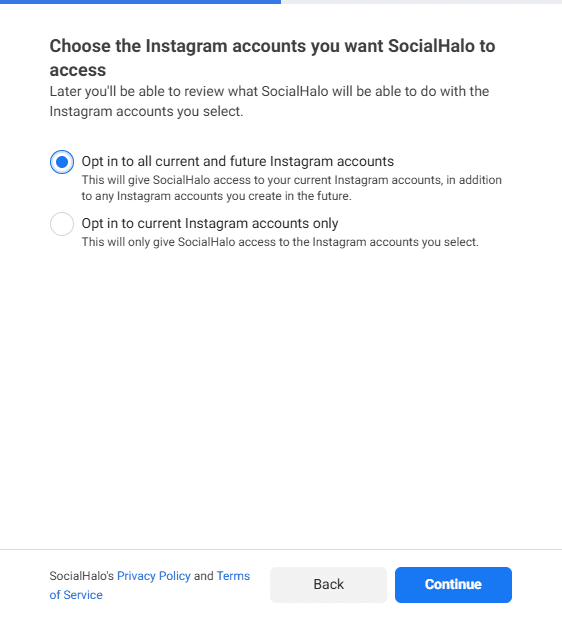
"Opt in to all current and future Instagram accounts" is selected for you. 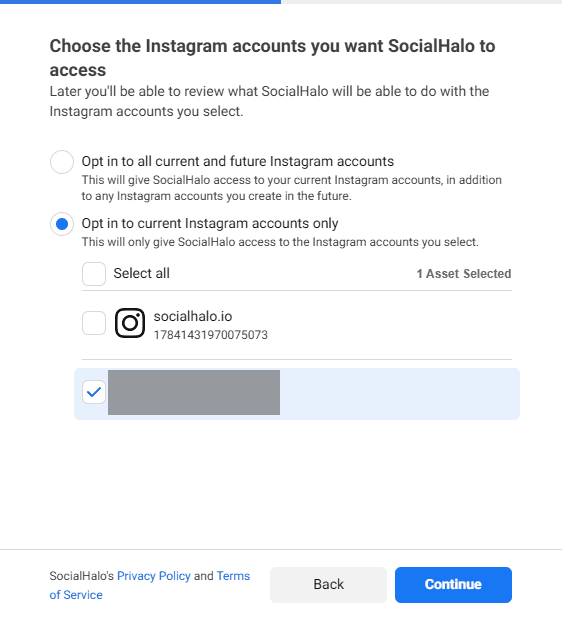
Choose "Opt in to current Instagram accounts only" and tick the account you want. If you manage several and want them all, tick them all now. One Facebook sign-in can connect several Instagram accounts at once, and doing it later means walking these screens again.
Then select Continue.
On a first connect nothing is ticked for you. Every box on both lists starts empty, and a screen full of empty boxes is what you should expect.
If you have connected before, Facebook restores what you chose last time and some boxes are already ticked when the list appears. Read them rather than trusting them. The account ticked for you is the one you picked last time, which is not necessarily the one you came here for.
Screen 3: Review SocialHalo's access request
This screen always appears, and there is nothing to switch on or off. It is a read-only summary of what we asked for. It lists four things:
- Access profile and posts from the selected Instagram account
- Access insights for the Instagram account
- Read content posted on the Page
- Show a list of the Pages you manage
All four are read access. If you want to change what we get, the only way is Back, then untick something on the screen before. Otherwise select Save.
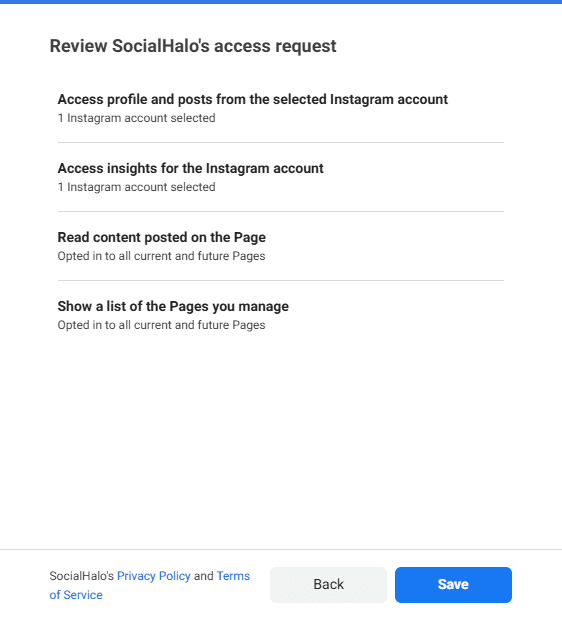
This screen always appears, and there is nothing to switch on or off. Two reasons to take the narrow option seriously rather than clicking past it. If you manage Pages for other people, the wide option can pull a client's Page into a workspace nobody meant to share it with. And if Facebook hands us more Instagram accounts than your plan holds, some of them will not connect.
You land back in SocialHalo
If you connected one account, you land on your dashboard with the connected handle named at the top. If you connected several, a banner tells you how many came through and says the posts are still importing, so the dashboard fills in as they arrive.
If something did not work, you come back to Settings with a message explaining what. The messages you are most likely to see are covered below under If it did not work.
What happens next
Your posts and metrics start importing straight away. A few things about the data are worth knowing up front, because they look like bugs and are not.
- Recent numbers are not final.
- Meta does not report everything the moment it happens, so a figure for today or yesterday can still change after you first see it. If a very recent number looks too low, look again later before treating it as wrong.
- Small accounts get no audience breakdowns.
- Below roughly 100 followers, Meta withholds the demographic splits: age, gender and location. Your follower count, your posts and your post metrics all still come through as normal. This is a privacy threshold on Meta's side, not a SocialHalo setting.
- Missing data shows as empty, not as zero.
- If a chart says there is nothing to show, Meta sent us nothing for that metric. It does not mean the metric was zero.
- Connecting Instagram works on every plan, including Free.
- Plans differ on how many accounts you can connect in total, not on which platforms you can use.
Set up a professional account
Instagram Business and Instagram Creator both work with SocialHalo. Pick whichever suits you. Meta suggests Business for retailers, local businesses, brands, organisations and service providers, and Creator for public figures, content producers, artists and influencers. The category you choose during setup does not decide which of the two you get.
You can switch back to personal later, or change between Business and Creator at any time.
Before you switch: Instagram shows you a dialog called Switch to a professional account? whether your account is currently private or not. It says:
"Your profile and content on Instagram will be public. Anyone will be able to see your content in search engine results, and you can turn this off anytime in Account privacy in Settings. You'll no longer need to approve followers, and any pending requests will be automatically approved."
Read that properly before you accept it. Search engine results is the part people do not expect, and pending follow requests are accepted the moment you switch, not gradually.
On instagram.com
The order of the steps is different on the web. Follow this list, not the app one.
- Click More, then select Settings.
- Below For professionals, select Account type and tools.
- Click Switch to professional account.
- Choose Creator or Business.
- If you chose Business, a screen titled Business then lists what a business account gives you. There is nothing to fill in. Select Next.
- Click Next.
- Select your category.
- Click Done, then confirm by clicking Continue.
Two more screens appear before Instagram confirms you are finished. Review your contact info asks whether to publish contact details on your profile: Don't use my contact info declines, Save keeps them. Connect to Facebook then offers to link a Page, and Not now is fine here because the next section does that properly. Instagram finishes on Your Instagram business account is ready.
From the Instagram app
These steps follow Meta's mobile documentation. If a label on your screen differs, trust your screen.
- Tap Profile or your profile picture in the bottom right to go to your profile.
- Tap More to go to your Settings and activity.
- Below For professionals, tap Account type and tools.
- Select Switch to professional account.
- Select your category.
- Tap Switch to professional account.
- Choose Creator or Business.
- Tap Next.
On both routes, Instagram offers to add contact details and to log in to Facebook before it finishes. Both are optional at that stage. Decline them if you want, and link the Page properly in Link Instagram to the Page below.
Switching to professional creates a Meta business portfolio automatically
Switching to a professional account automatically creates a Meta business portfolio, named after your Instagram account. A business portfolio is Meta's container for Pages, Instagram accounts and ad accounts.
That matters for one reason: an Instagram account can belong to only one business portfolio at a time. If you already run a portfolio for your business, your Instagram account is now sitting in a brand new one instead of yours, and it needs moving. See The Instagram account is in the wrong business portfolio below.
Create a Facebook Page
Anyone with a personal Facebook profile can create a Page. You need a Page because it is the route Instagram data travels along.
On a computer
- Log in to Facebook.
- Click Pages on the left.
- Below Your Pages and profiles, click Create new Page. Scroll down inside the Pages section if you cannot see it.
- Enter the Page name and select a Category.
- Click Create Page.
In the Facebook app
- Open the Facebook app.
- Tap Menu in the top left.
- Tap Pages.
- Tap Create at the top left.
- Enter your Page name and tap Next.
- Search for a category, or choose one of the Popular categories.
- Tap Create.
A bio, profile picture and cover photo are optional. SocialHalo does not need them.
Link Instagram to the Page
You need a professional Instagram account before you start. If the account is still personal, Instagram prompts you to switch part-way through.
Do this on a computer. The steps below were walked end to end on instagram.com.
- Go to instagram.com and sign in to the Instagram account you want to connect.
- Select Edit profile in the left menu. You land on instagram.com/accounts/edit/.
- Scroll to Public business information.
- Find the field labelled Facebook and select Connect beside it.
- A window titled Connect to Facebook opens. Select Connect to Facebook. (Not now closes it without doing anything.)
- A popup titled Log into Facebook opens. Select Log in and sign in if it asks you to.
- Review what you're connecting to names what Instagram is about to link. Check the names, then select Continue. Change connections takes you back if something is wrong.
- What do you want to connect to? has three dropdowns: Business portfolio, Ad account and Facebook Page. Set Facebook Page to the Page you want. Only that one matters for SocialHalo, so leave the other two as Instagram set them unless you know you want something different.
- Select Continue, then Submit.
- Your accounts are now connected confirms it worked.
If you have no Page yet, make one first using Create a Facebook Page above, then come back here. Instagram may also offer to create a Page for you during this flow. We have not walked that route, so this guide does not cover it.
Instagram may ask you to log in to your personal Facebook account during this. That is deliberate on Meta's part. It confirms your personal profile has access to the Page.
If you would rather do this on your phone
These steps follow Meta's mobile documentation rather than a connect we walked ourselves. The computer steps above are the ones we can vouch for. If a label on your screen differs from the list below, trust your screen.
- Tap Profile or your profile picture in the bottom right to go to your profile.
- Select Edit profile.
- On a Business account, scroll to Public business information. On a Creator account, scroll to Profile information. The section is named differently depending on which type you chose.
- Tap Page, then tap Connect or create.
- Tap Continue.
- Tap Login to Facebook, then tap Continue to confirm the Facebook account shown. To use a different one, tap Switch Facebook account.
- Choose the Page you want, then tap Connect.
To unlink later
This is the phone route. We have not documented a way to unlink from a computer, so use your phone for this one.
- Tap Profile or your profile picture in the bottom right to go to your profile.
- Select Edit profile.
- On a Business account, scroll to Public business information. On a Creator account, scroll to Profile information.
- Tap Page, then tap Disconnect Page.
Two consequences of unlinking. Disconnecting a Page can cancel an active Meta Verified subscription tied to that Page and Instagram account. And switching your Instagram account back to a personal account disconnects any linked Page as a side effect, whether or not you intended it.
Get full control of the Page
Full control is the access level that lets someone manage Page settings and grant access to other people. Meta's own help pages call it "full control" in one place and "full access" in another. Both refer to the same level, so pick whichever your screen shows.
There are two lower levels you might currently hold. Partial access (business tools only) lets you work on the Page through Meta Business Suite and Ads Manager. Partial access (business tools and Facebook) adds the ability to act as the Page on Facebook itself. Neither of them lets you give another person access to the Page. Meta also lists full control as a requirement for connecting an Instagram account to a Page, so treat partial access as not enough for that either.
If someone else runs the Page
Ask them to do this on a desktop computer. They need full access to the Page or to the business portfolio.
- Go to Meta Business Suite on a desktop computer.
- Click Settings.
- Below Accounts, click Pages, then select the Page.
- Click Assign people.
- Below Add People, find and select you.
- Choose full access.
- Click Assign.
If you are not in their business portfolio yet, they can request that you be invited and given Page access. Someone with full access to the portfolio approves that request.
Do not leave a Page with nobody in full control
If nobody holds full control of a Page in a business portfolio, Meta automatically deactivates that Page and schedules it for deletion. Keep at least one person on that level before removing anyone.
If it did not work
"No Facebook Page came through with this login."
The asset-selection screens ran and no Page was shared with us. Either no Page was ticked, or the Facebook profile you signed in with does not have access to the Page.
Run Connect Instagram again. If Facebook offers to continue with your previous settings, select Edit settings rather than Continue, or it will hand us the same empty grant a second time. Then choose Opt in to current Pages only and tick the Page. If your Page is not in the list at all, you signed in with the wrong Facebook profile, or you do not hold access to that Page yet.
"We can see your Facebook Page, but no Instagram Business or Creator account is linked to it."
The Page came through, the Instagram account did not. Two possible causes. The account is still personal, or it is professional but not linked to that Page.
Work through Set up a professional account, then Link Instagram to the Page, then connect again.
"Facebook held back access to the Page behind your Instagram account."
Facebook accepted the sign-in but withheld something we need. There are two causes and it is worth ruling out the quick one first.
Run the connect again. On the Pages screen and on the Instagram accounts screen, take the current only option so the lists appear, and tick the Page as well as the Instagram account before you continue.
If it fails the same way a second time, the cause is your role on the Page rather than anything on that screen. You need full control of the Page, or you need somebody who has it to run the connect for you.
"Facebook stopped accepting the login part-way through."
The Facebook session expired mid-flow. Sign in to Facebook again in the same browser, then run Connect Instagram once more.
"We could not finish checking which Instagram accounts you have access to, so nothing was connected."
Meta did not answer us completely, so we stopped rather than guess and tell you something wrong. Nothing is broken on your account and nothing was connected. Run the connect again.
"Your plan allows … Upgrade to connect more."
Nothing is wrong with your Instagram setup and nothing on this page will fix it. Your workspace is already holding as many accounts as your plan allows, so there was no room for another one.
The count covers every account connected to this workspace, not only the Instagram ones, so a YouTube or TikTok account you connected earlier is taking up room too.
Two ways out. Disconnect an account you no longer track, or move to a plan that holds more. Both live in Settings.
"You're at your limit of … Your plan's limit applies once the trial ends, so upgrade to keep this many."
Nothing is wrong with your Instagram setup. Your workspace is already holding as many accounts as your current limit allows, so there was no room for another one. The count covers every connected account, not only the Instagram ones.
When the trial ends, connected accounts over your plan's limit are paused. We keep the data already collected and stop collecting more. The accounts you connected first are the ones that keep running, and upgrading brings a paused account back.
To keep all of them, move to a plan that holds this many before the trial ends. That is also what makes room for the account you were trying to add. The upgrade lives in Settings.
"Instagram authorization was cancelled (…)."
You closed the Facebook window, or chose not to continue when Facebook asked. Nothing was changed and nothing was connected. Run Connect Instagram again when you are ready.
I cannot add my Instagram account to my business portfolio
Meta documents five causes for this. Work down the list.
You do not have full control of the business portfolio. You need it to connect an Instagram account to a Page inside that portfolio. Without it you may have to send a request instead: people with full control get an email and a Facebook notification asking them to confirm the connection in Page settings. You can also ask somebody with control to grant you full control. If nobody in your organisation has full control of the portfolio, you can submit a request to Meta.
Another admin needs to approve it. Even with full control, a second person with full control may need to approve the Instagram account joining the portfolio. It waits under Requests in Meta Business Suite's Settings.
You are trying to connect a Facebook profile instead of a Facebook Page. An Instagram account linked to a personal Facebook profile cannot be added to a business portfolio. The portfolio has to claim both the Page and the Instagram account. See the claim steps below.
Something on your account is restricted. A policy or Advertising Standards issue on your portfolio, ad account, user account or Page can block this. Go to Business Support Home to see your account status and any issue attached to it. Some decisions can be appealed there.
The Instagram account is already in a different business portfolio. Covered next.
The Instagram account is in the wrong business portfolio
An Instagram account can be in only one business portfolio at a time. If it landed in the portfolio Instagram created automatically when you switched to professional, and your Page lives in a different one, they cannot see each other.
You have three options.
Remove the Instagram account from the portfolio it is in now, then add it to the one holding your Page. Or ask somebody with full control of the portfolio that has the Instagram account to give you access to it. Or switch the Instagram account to private, switch it back to professional, and then link it to the Page you have admin access to.
If you take the third option, know what the round trip costs you. Coming off a professional account disconnects any Facebook Page currently linked to it. Switching back to professional then makes the account public again and automatically accepts every follow request waiting on it, exactly as it did the first time. Try the other two options before this one.
To add an Instagram account to a business portfolio, on a desktop computer, with full control of that portfolio:
- Go to Settings in Meta Business Suite for your business portfolio.
- Click Instagram accounts below Accounts in the left menu.
- Click Add.
- Review the information on screen, then click Add Instagram account.
- A new window opens. Enter your Instagram username and password, then click Log in.
- Click Confirm.
Instagram may ask about cookies, may ask you to set up a professional account if the account is still personal, and will ask for your security code if you use two-factor authentication.
Claiming a Page that already has an Instagram account attached
On a desktop computer, in Meta Business Suite:
- Go to Settings in Meta Business Suite for your business portfolio.
- Click Pages in the left menu. If you cannot see Pages, you may not have full control of the portfolio.
- Click Add, then click Add an existing Facebook Page.
- Enter the Facebook Page name or Page URL to find it.
- Agree to the terms and conditions of claiming the assets.
- Click Claim Page or Claim Page and Instagram.
If the Page already has an Instagram account connected, you have to claim the Page and the Instagram account together.
I do not have a business portfolio at all
You almost certainly do. Switching an Instagram account to professional creates one automatically, named after the Instagram account. Sign in at business.facebook.com to see it.
To create another one:
- Go to business.facebook.com and log in.
- Click the dropdown menu below Home in the top left.
- Click Create a business portfolio.
- Enter a name. Use the public name of your business, because it is visible across Meta. It cannot contain special characters.
- If you signed in with a Facebook profile rather than a managed Meta account, you also enter your first and last name and a business email. Meta uses that email to contact you and does not show it to your customers.
- Click Create or Create portfolio.
You can personally create up to two business portfolios. There is no limit on how many you can belong to. Each business asset belongs to exactly one portfolio.
Questions people ask
Can SocialHalo post to my Instagram?
No. We hold read access only. We can read your posts, metrics and comments, and we cannot publish, reply, delete or edit anything. Instagram publishing is not something SocialHalo does.
Do I have to switch to a Business account? I want to stay a Creator.
Creator accounts work exactly as well as Business accounts here. Stay a Creator.
Can I connect more than one Instagram account?
Yes. One Facebook sign-in can grant several Instagram accounts at once. On Facebook's Instagram accounts screen, choose Opt in to current Instagram accounts only and tick every account you want. How many you can hold in a workspace depends on your plan.
Why did only some of my accounts connect?
You reached your plan's limit on connected accounts. SocialHalo connects as many as the plan allows and tells you how many were left out.
Why can I not see the Connect Instagram button?
Only workspace admins can connect accounts. Ask the workspace owner to either connect it for you or to make you an admin.
Can I connect the same Instagram account to two SocialHalo workspaces?
Nothing on Meta's side stops you granting the same account twice. Each workspace holds its own connection.
What happens if I unlink Instagram from the Page later?
SocialHalo loses its route to the account and stops receiving new data. Reconnect after you relink the Page.
Will my followers see any of this?
Connecting SocialHalo is invisible. We do not post and we do not appear anywhere on your profile.
The switch to a professional account is visible, though. A private account becomes public. Your profile also gains the option to show a category label and business contact details, and it is worth checking which way that is set rather than assuming. Go to your profile and tap Edit profile. On a Business account, find Profile display below Public business information. On a Creator account, look under Profile information instead. Choose whether to show or hide the category label and contact info, then tap Done.
My numbers look wrong or a chart is empty.
Two Meta behaviours explain most of it. Recent figures are still settling and can change after you first see them. And accounts under roughly 100 followers get no age, gender or location breakdowns from Meta, although the follower count itself comes through normally. An empty chart means Meta sent us nothing for that metric, which is not the same as sending us a zero.
A message not listed here
The connect can report a handful of rarer problems that are not worth a section each. If the message on your screen does not appear above, it is covered by Still stuck below: send us the text of it and we will tell you which step to redo.
Still stuck
Send us the message you saw on the Settings screen and the Instagram handle you were trying to connect. That pair is usually enough for us to tell you exactly which step to redo.
Email support